




„Es tut mir leid, die Übersetzung dieses Textes ist vorübergehend nicht verfügbar.“ bedeutet normalerweise, dass die Übersetzungsanfrage fehlgeschlagen ist, nicht dass der Originaltext verschwunden oder ungültig geworden ist. Die Ursache kann eine kurze Dienstunterbrechung, eine instabile Verbindung, nicht unterstützter Inhalt, falsche Spracherkennung oder ein Problem innerhalb einer App-Funktion sein. Die folgenden Überprüfungen helfen Ihnen zu bestimmen, ob Sie es erneut versuchen, eine Einstellung ändern, den Quelltext bereinigen oder die Werkzeuge wechseln sollten.
Was bedeutet "Übersetzung vorübergehend nicht verfügbar"?
Die Formulierung ist allgemein gehalten, da die Übersetzungsebene oft nicht in der Lage ist, den genauen Fehler für den Benutzer zu identifizieren.
Die Übersetzungsanfrage ist fehlgeschlagen, nicht unbedingt der Originalinhalt.
Die Übersetzung ist normalerweise ein separater Prozess, der angewendet wird, nachdem eine App, ein Browser oder eine Website den Quelltext geladen hat. Ein Fehler kann auftreten, wenn die Plattform den Text an einen Übersetzungsdienst sendet, die Sprache erkennt oder das Ergebnis erhält. Wenn Sie den Originaltext weiterhin lesen, auswählen oder kopieren können, bleibt der Inhalt wahrscheinlich verfügbar.
Das Problem könnte vorübergehend sein oder auf eine bestimmte Übersetzungsfunktion beschränkt sein.
Eine fehlgeschlagene Übersetzung beweist nicht, dass Google Translate überall nicht funktioniert. Die Kameratranslation, die Webseitenübersetzung, der eingegebene Text, die Sprache und ein „Übersetzen“-Button in der App können unterschiedliche Berechtigungen, Sprachunterstützung oder Verarbeitungswege verwenden. Testen Sie einen anderen Artikel und einen anderen Modus, bevor Sie etwas neu installieren.
Häufige Ursachen sind Verbindungs-, Sprach-, Inhalts- oder Dienstprobleme.
Schwache Konnektivität, VPN- oder Firewall-Filterung, eine nicht unterstützte Sprachpaarung und falsche automatische Erkennung sind häufige Ursachen. Die Übersetzung kann auch bei extrem langen Texten, gemischten Schriften, dekorativen Zeichen, Bildern ohne erkannten Text oder dynamisch geladenem Inhalt fehlschlagen. Seltener hat der Anbieter oder die Plattform, die den Inhalt hostet, eine Störung.
Wo tritt dieser Übersetzungsfehler auf und wie können Sie ihn überprüfen?
Der Standort des Fehlers ist der schnellste Hinweis, da er zeigt, welcher Teil des Workflows getestet werden muss.
Identifizieren Sie die Stelle, an der der Übersetzungsfehler auftritt.
Notieren Sie, ob der Fehler einen sozialen Beitrag, eine gesamte Webseite, eine Nachricht, ein Bild oder eine spezielle Übersetzungs-App betrifft. Vermerken Sie auch, ob der ursprüngliche Inhalt geladen wird und ob das Problem ein einzelnes Element oder alles betrifft. Diese Unterscheidung trennt ein inhaltsspezifisches Problem von einem Konto-, Geräte-, Netzwerk- oder Dienstproblem.
Führen Sie einen Schnelltest durch, um die Ursache einzugrenzen.
Verwenden Sie einen kurzen, einfachen Satz in einer Sprache, die Sie identifizieren können, und wiederholen Sie dann die Anfrage für einen anderen Artikel oder Übersetzungsmodus. Der Vergleich ist nützlicher als das wiederholte Drücken derselben Taste.
|
Wo das Problem auftritt |
Typisches Symptom |
Schnellprüfung |
Was das Ergebnis nahelegt |
|
Beiträge, Bildunterschriften oder Kommentare in sozialen Medien |
Ein Teil funktioniert nicht, während andere funktionieren. |
Laden Sie es neu und übersetzen Sie ein anderes Element. |
Eine Einschränkung der Quellsprache, Formatierung oder des Inhalts ist wahrscheinlich |
|
Webseiten- und Browserübersetzung |
Die Seite oder einige Abschnitte bleiben unübersetzt. |
Aktualisieren, testen Sie eine andere Seite und versuchen Sie, den betroffenen Text zu kopieren. |
Skripte, Frames, dynamische Inhalte oder Seitenformatierungen können die Übersetzung blockieren |
|
Messaging-Apps und mobile Tastaturen |
Die Übersetzung der Nachricht oder der Texteingabe wird gestoppt |
Versuchen Sie einen einfachen Satz an anderer Stelle und wählen Sie beide Sprachen manuell aus. |
Die ursprüngliche Nachricht, das Gespräch oder die App ist wahrscheinlich verantwortlich. |
|
Bilder, Videos oder Scans |
Sichtbare Wörter werden nicht erkannt. |
Überprüfen Sie die Klarheit, den Zuschnitt, die Ausrichtung und die Texterkennung |
Bildqualität, OCR oder nicht unterstützter visueller Inhalt ist die wahrscheinliche Ursache |
|
Eigenständige Übersetzungs-Apps |
Text-, Sprach-, Kamera- oder Offline-Modus schlagen fehl |
Testen Sie einen kurzen getippten Satz in jedem Modus. |
Eine Funktion könnte fehlerhaft sein, anstatt die gesamte App. |
|
Mehrere Apps oder Websites |
Mehrere Werkzeuge versagen gleichzeitig |
Zwischen WLAN und mobilen Daten wechseln |
Ein VPN, Proxy, Firewall oder lokale Netzwerkeinstellungen könnten stören. |
So beheben Sie die vorübergehend nicht verfügbare Übersetzung Schritt für Schritt
Beginnen Sie mit umkehrbaren Überprüfungen und stoppen Sie, sobald die Übersetzung funktioniert; das Zurücksetzen der App kann zuerst nützliche Einstellungen oder heruntergeladene Sprachen löschen.
Schritt 1: Übersetzung erneut versuchen und den Originalinhalt neu laden
Warten Sie kurz, versuchen Sie es einmal erneut und aktualisieren Sie dann den Beitrag, die Seite oder das Gespräch. Öffnen Sie die App bei Bedarf erneut. Dies löscht den veralteten Seitenstatus und vorübergehende Anforderungsfehler, ohne Ihre Daten zu ändern; wiederholte schnelle Versuche helfen selten bei einem Problem auf der Serverseite.
Schritt 2: Überprüfen Sie die Verbindung und entfernen Sie Netzwerkbeschränkungen
Öffnen Sie eine andere Live-Webseite und wechseln Sie dann von WLAN zu mobilen Daten oder umgekehrt. Deaktivieren Sie vorübergehend ein VPN, einen Proxy, einen privaten DNS-Filter oder eine strenge Firewall, sofern Ihre Sicherheitsrichtlinien dies zulassen. Wenn die Übersetzung im alternativen Netzwerk funktioniert, beheben Sie die Probleme im ursprünglichen Netzwerk anstelle der Übersetzungs-App.
Schritt 3: Manuell die Quell- und Zielsprache festlegen
Ersetzen Sie die automatische Spracherkennung durch die tatsächliche Quellsprache und bestätigen Sie die Zielsprache. Kurze Phrasen, Namen, mehrsprachige Nachrichten und eng verwandte Sprachen können falsch identifiziert werden. Ein vollständiger Satz bietet mehr Kontext als ein isoliertes Wort, eine Praxis, die sich auch in Googles Anweisungen für die schriftliche ÜbersetzungDie
Schritt 4: Den Text bereinigen und den Problemabschnitt isolieren
Kopieren Sie den Text in ein einfaches Textfeld und entfernen Sie übermäßige Emojis, unsichtbare Formatierungen, wiederholte Interpunktion oder fehlerhafte Zeilenabstände. Teilen Sie einen langen Abschnitt in kleinere sinnvolle Abschnitte und nicht in einzelne Wörter. Wenn ein Segment ständig fehlschlägt, überprüfen Sie es auf ungewöhnliche Symbole, gemischte Schriftarten, Kontrollen für vertrauliche Inhalte oder nicht unterstütztes Material.
Schritt 5: Aktualisieren und Zurücksetzen der betroffenen Übersetzungsfunktion
Aktualisieren Sie die App und das Betriebssystem, starten Sie den Browser oder das Gerät neu und stellen Sie sicher, dass JavaScript und die erforderlichen Berechtigungen aktiviert sind. Löschen Sie als Nächstes den Browser-Cache für die betroffene Website oder den App-Cache, wo das Betriebssystem dies zulässt. Installieren Sie nur nach dem Speichern von Phrasebüchern oder anderen lokalen Daten und notieren Sie, welche Offline-Sprachpakete erneut heruntergeladen werden müssen.
Schritt 6: Überprüfen Sie die Verfügbarkeit von Konto, Region und Sprache
Abmelden und erneut testen, wenn die Funktion normalerweise ohne ein Konto funktioniert; andernfalls das Kontenalter, die Administratorsteuerungen und die regionale Verfügbarkeit überprüfen. Nicht jede Sprache unterstützt jeden Modus, und die Website-Übersetzung ist nicht in allen Regionen verfügbar gemäß Google Translate-HilfeDieEin deaktivierter Sprach- oder Download-Button kann auf eine nicht unterstützte Verfügbarkeit hinweisen, anstatt auf einen Fehler.
Schritt 7: Überprüfen Sie auf einen Dienstausfall oder testen Sie ein anderes Gerät
Testen Sie denselben kurzen Satz auf einem zweiten Gerät oder über die Weboberfläche des Anbieters. Wenn es auf verschiedenen Geräten und Netzwerken fehlschlägt, suchen Sie nach einer offiziellen Statusseite oder einer Supportmitteilung und warten Sie, bevor Sie weitere Einstellungen ändern. Wenn nur ein Gerät fehlschlägt, vergleichen Sie die App-Versionen, Berechtigungen, Speicher, Datum- und Uhrzeiteinstellungen sowie die Netzwerkkonfiguration.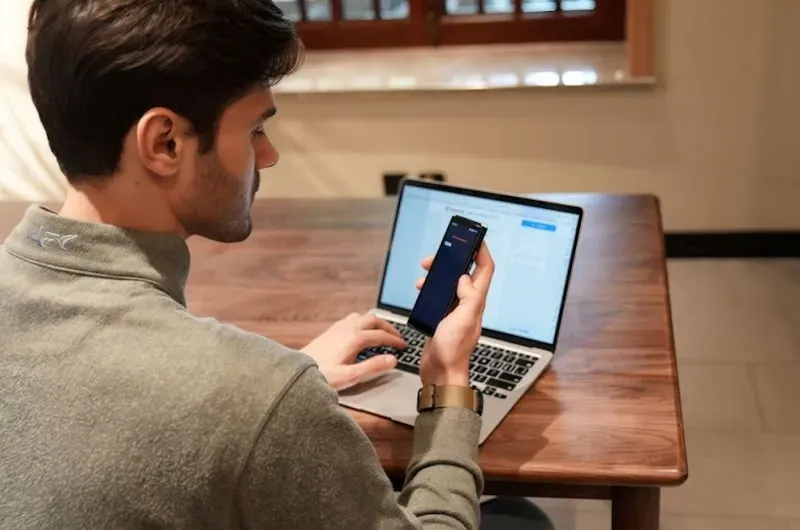
Was zu verwenden ist, wenn die integrierte Übersetzung immer noch nicht funktioniert
Wählen Sie eine Fallback-Option basierend auf dem Quellformat, den Datenschutzanforderungen, der Konnektivität und der Häufigkeit des Problems.
Fügen Sie den Originaltext in ein separates Übersetzungstool ein
Kopierbarer Text lässt sich am schnellsten in einem eigenständigen Übersetzer testen. Fügen Sie einen vollständigen Abschnitt ein, stellen Sie beide Sprachen manuell ein und vergleichen Sie das Ergebnis mit dem Kontext, den Sie verstehen. Vermeiden Sie das Hochladen vertraulicher Verträge, Gesundheitsakten, interner Nachrichten oder persönlicher Daten, es sei denn, die Datenschutzbedingungen des Tools und die Richtlinien Ihrer Organisation erlauben dies.
Verwenden Sie Screenshot- oder Fotoübersetzung für visuelle Inhalte
Für Untertitel, gescannte Hinweise, Menüs oder Text, der in ein Bild eingebettet ist, erfassen Sie ein scharfes, eng beschnittenes Bild mit gutem Kontrast. Richten Sie das Bild aus und entfernen Sie nicht verwandte Texte, damit die optische Zeichenerkennung die richtige Lesereihenfolge identifizieren kann. Wenn Genauigkeit wichtig ist, überprüfen Sie Namen, Zahlen, Daten, Warnungen und technische Begriffe anhand des Originals.
Verwenden Sie eine Übersetzungs-App mit heruntergeladenen Offline-Sprachen
Wenn Reisen, schlechte Empfangsbedingungen oder Datenbeschränkungen erklären, warum Google Übersetzer nicht funktioniert, bereiten Sie Offline-Sprachpakete vor, bevor Sie ein zuverlässiges Netzwerk verlassen. Google gibt an, dass heruntergeladene Sprachen ohne Internetverbindung übersetzen können, obwohl eine Sprache ohne Download-Option offline nicht verfügbar ist; Pakete können auch Updates erfordern (Android, iPhone und iPad). Google Translate offline ist nützlich für alltägliche Phrasen, aber Verfügbarkeit und Ergebnisse können von den Online-Modi abweichen.
Betrachten Sie ein dediziertes Übersetzungsgerät für häufigen Offline-Einsatz
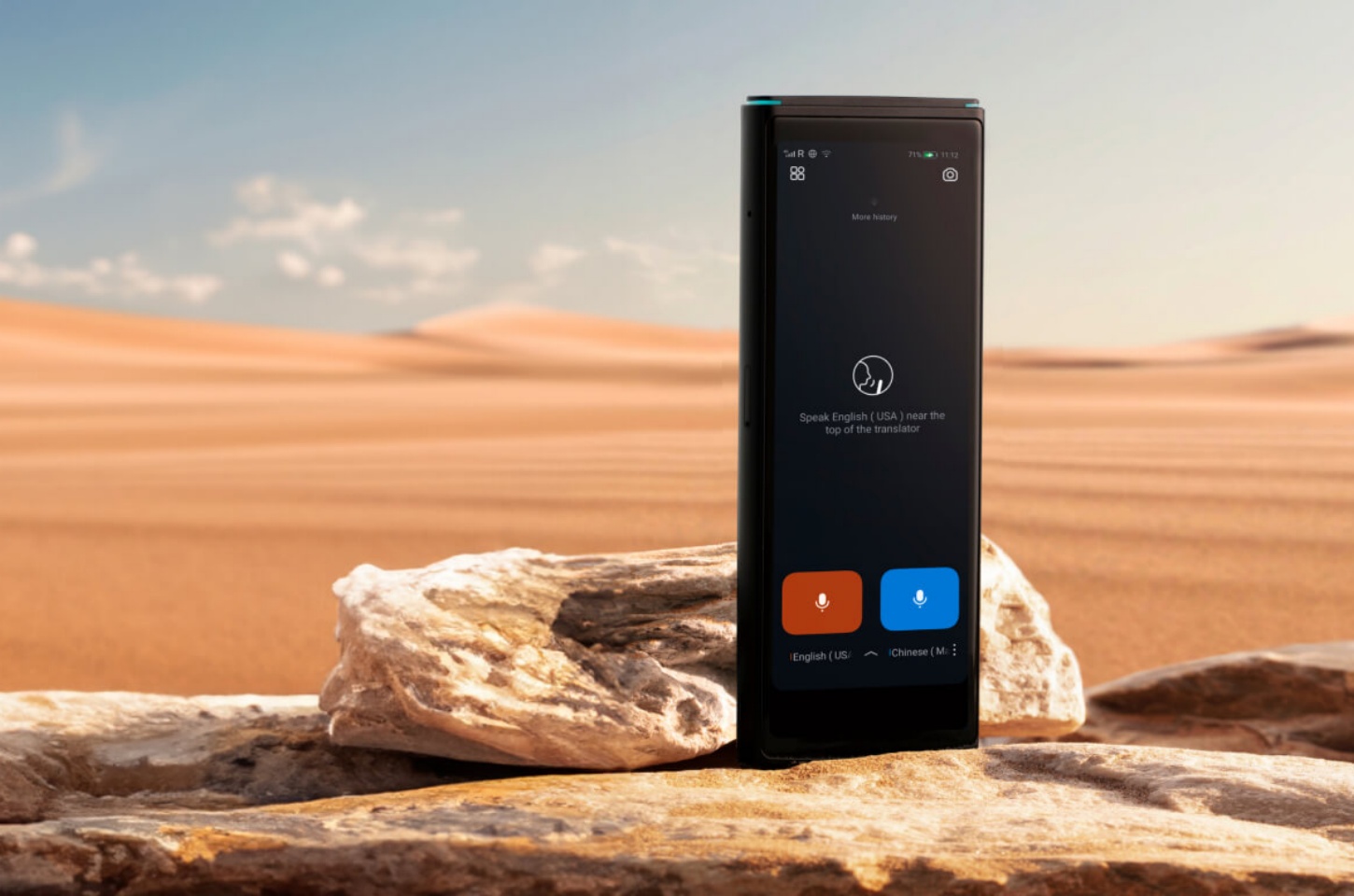
Ein dediziertes Gerät kann Reisenden, Außenteams und mehrsprachigem Personal dienen, die nicht auf die Verfügbarkeit von Telefonen oder zuverlässigen Mobilfunkdiensten angewiesen sein können. iFLYTEK Smart Translatorist um diesen Arbeitsablauf herum gestaltet: Die offiziellen Spezifikationen umfassen Offline-Übersetzung, zweisprachige Erkennung, Online-Übersetzung in 60 Sprachen und Fotoübersetzung in 50 Sprachen. Es beinhaltet auch zwei Jahre mobile Datennutzung in mehr als 148 Ländern und Regionen und bietet eine Online-Alternative, wenn lokales WLAN nicht verfügbar ist.
Das macht einen dedizierten Übersetzer für jeden „Übersetzung vorübergehend nicht verfügbar“-Fehler nicht notwendig. Für gelegentlich kopierbaren Text ist ein Telefon mit heruntergeladenen Sprachen in der Regel die einfachere und kostengünstigere Wahl. Erwägen Sie eine separate ÜbersetzungsgerätWenn Übersetzungen häufig erforderlich sind, Gespräche zeitkritisch sind oder ein Telefon für Anrufe und andere Arbeitsangelegenheiten verfügbar gehalten werden muss. Bestätigen Sie vor dem Kauf, dass die erforderliche Sprachkombination und der Offline-Modus unterstützt werden; für rechtliche, medizinische oder sicherheitskritische Kommunikation verwenden Sie einen qualifizierten menschlichen Dolmetscher, anstatt sich ausschließlich auf maschinelle Ausgaben zu verlassen.
Abschluss
„Übersetzung vorübergehend nicht verfügbar“ ist normalerweise ein Problem auf Anfrageebene, das Sie eingrenzen können, indem Sie jeweils eine Variable ändern. Bestimmen Sie zunächst, ob es sich auf ein einzelnes Stück Inhalt, einen Modus, ein Gerät oder jeden Dienst im Netzwerk auswirkt. Versuchen Sie es dann erneut, überprüfen Sie die Konnektivität und Sprachen, vereinfachen Sie die Quelle und aktualisieren Sie nur die betroffene Funktion. Ein separater Text-, Bild- oder Offline-Übersetzer bietet eine praktische Rückfalloption. Ein Gerät wie der iFLYTEK Smart Translator wird relevant, wenn Offline- oder sprachübergreifende Kommunikation häufig genug ist, um dedizierte Hardware zu rechtfertigen, nicht als erste Reaktion auf einen vorübergehenden Fehler. Wenn Fehler über Geräte und Netzwerke hinweg bestehen bleiben, ist es oft besser, auf den Anbieter zu warten, um den Dienst wiederherzustellen, als Ihre Einrichtung wiederholt zurückzusetzen.
Mehr lesen: